
Skin Swapping
How to swap character models with Skin Swapper
Overview
Section titled “Overview”The Skin Swapper lets you replace a character’s equipped skin mesh with other mesh mods that are compatible with Project Galacta.
How it works
Section titled “How it works”Project Galacta adds its own in-game overlay, the Skin Swapper menu, opened with P. Its Skins tab lists the installed mod skins available for your currently equipped skin – not the hero’s own vanilla skins, which you still pick through the game’s normal skin selection first. A Default entry is always listed too, to revert back to the vanilla mesh.

Pis also the game’s default voice chat menu bind. It’s recommended to unbind or move that first to avoid a conflict – or just rebind the Skin Swapper key instead, see below.
For a mod to show up there, it has to ship a Skin Config asset – that’s what the Companion App scans for when it builds the manifest from your installed mod packages. Mods without one won’t be picked up.
Rebinding the menu key
Section titled “Rebinding the menu key”The Skin Swapper’s menu key can be rebound from the game’s own settings, in: Settings → Others tab → Project Galacta section.
Swapping a skin
Section titled “Swapping a skin”- Install a skin mod that ships a Skin Config asset (compatible with Project Galacta) into your mods folder.
- Open the Companion App, setup settings and build the manifest.
- In-game, select the hero skin the mod is for, then press P to open the Skin Swapper overlay.
- Pick the mod skin from the Skins tab, it applies immediately.
Heroes with multiple forms
Section titled “Heroes with multiple forms”Some heroes change body mid-match – Hulk, Cloak & Dagger, Mister Fantastic and so on. The Skins tab always lists the mod skins made for the form you are currently in.
If a mod ships meshes for several forms, you only pick it once, on the hero’s base form. When you change form, the matching mesh from that same mod is applied automatically. A form the mod has no mesh for simply shows the vanilla one.
You can still mix: pick a different skin while you are in a form and it applies to that form only. Picking Default while in a form clears that choice, so the form goes back to following your base-form skin the next time you change form.
Other tabs
Section titled “Other tabs”- Morphs – tweak the shape keys shipped with the currently swapped mesh using sliders.
- Materials – show or hide each material slot on the currently swapped mesh.
- Accessories and Settings – coming soon.
Supported characters / skins
Section titled “Supported characters / skins”Any skin already unlocked on your account can be modded – including each hero’s free default costume. The swap is based on whichever skin is currently equipped, not a fixed compatibility list, so there’s nothing to look up per character.
Integrity concerns
Section titled “Integrity concerns”- Mesh Swapper runs robust security checks. It does not let you preview or unlock skins you haven’t purchased. The swap only replaces the mesh of a skin you already own and have equipped – it can’t point at a vanilla premium skin you don’t own, that’s explicitly blocked.
For modders
Section titled “For modders”To make a skin mod Skin Swapper-compatible, it needs a GAL_ModSkinConfig DataAsset alongside your mesh, that’s what the Companion App reads to build the manifest.
Start from the SkinConfig template (downloadable from both NexusMods and GitHub Releases); direct instances of the template are required, subclassing isn’t supported.
/Content/Marvel/Characters/...? That same mesh can’t be reused as-is. Copy your custom mesh into the Project Galacta folder like explain below and continue with the guide. You can keep shipping the original as a regular replacer for players not using the Skin Swapper, and ship the moved copy as a separate PG-compatible version.
Package your custom mesh only – don’t include an override for the vanilla mesh path in the same mod. Otherwise reverting to Default in the Skin Swapper still shows your custom mesh instead of the actual vanilla one.
The same goes for materials. If your custom mesh’s material instances still live inside the vanilla skin’s own folder (instead of being duplicated into your own mod folder first), packaging your mod overrides that vanilla material path too – so even Default ends up rendering with your custom material, since the vanilla mesh points at that same, now-overridden path. Always duplicate materials into your own folder before editing them.
The steps to follow to make a Skin Swapper-compatible mesh mod:
Section titled “The steps to follow to make a Skin Swapper-compatible mesh mod:”-
Import the
GAL_ModSkinConfiguasset in your UE project and place it under/Content/Marvel/ProjectGalacta/Blueprints, open it and compile the blueprint. -
Create an instance of it by creating a new Data Asset of class GAL_ModSkinConfig, rename it how you like, and fill in:
Property Type Value TargetHeroIDInt 4-Digit Hero ID TargetSkinIDInt Full 7-digit skin ID SkinNameStr Name of your custom skin, shown in the Skin Swapper’s Skins tab AuthorStr Shown alongside the skin name MeshToSwapObject Skeletal Mesh Reference to your replacement mesh TargetSculptIDInt Which form of the hero the mesh is for. Leave at 0unless the hero has several forms -
Place both the config instance and the mesh it points to in the same folder:
/Content/Marvel/ProjectGalacta/Meshes/{HeroID}/{SkinID}/{YourModFolder}/
All the materials, textures, anim blueprints, other assets referenced by the mesh can stay outside of
YourModFolder. You can name your custom mesh however you like. Please, keep mod structure organized.
- Add your Skin Config Data Asset (with the other mod assets) to your project’s PrimaryAssetLabel and package the mod as usual.
MeshToSwap must point at your own custom mesh, it can’t reference a vanilla game asset directly, that’s blocked.
Example of a correct Skin Config:
Section titled “Example of a correct Skin Config:”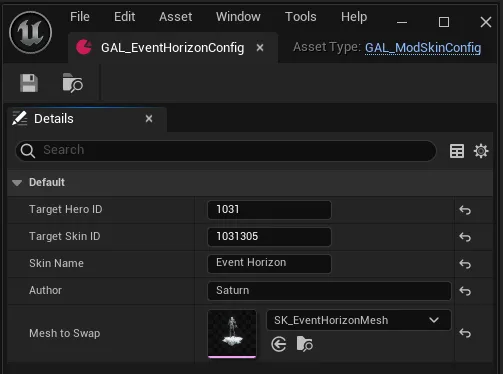
Heroes with multiple forms
Section titled “Heroes with multiple forms”A hero that changes body in a match has one mesh per form, and the game calls each of those forms a Sculpt. TargetSculptID tells the Skin Swapper which form your mesh belongs to.
Finding the form number. It is a single digit, and it is already in the game’s own asset names. Open the hero in FModel and look at the child blueprint or the mesh folder of the form you are replacing:
| What you see in FModel | TargetSculptID |
|---|---|
1011001_ChildBP – no extra number, the base form |
0 |
1011001_10111_ChildBP, mesh folder 10111 |
1 |
1011001_10112_ChildBP, mesh folder 10112 |
2 |
The extra number is the hero ID followed by one digit – that last digit is the value to enter. Enter the digit only (1), not the whole number (10111).
Shipping a full set. Make one mesh and one Skin Config per form, and put them all in the same {YourModFolder}:
/Content/Marvel/ProjectGalacta/Meshes/1011/1011001/CustomHulk/ SK_CustomHulk_Banner GAL_CustomHulk_Banner TargetSculptID = 0 SK_CustomHulk_Hulk GAL_CustomHulk_Hulk TargetSculptID = 1 SK_CustomHulk_Monster GAL_CustomHulk_Monster TargetSculptID = 2Every config uses the same TargetHeroID and TargetSkinID – only the mesh and TargetSculptID differ. Add all of them to your PrimaryAssetLabel.
Sharing the folder is what makes them one skin: the player picks it once on the base form and the other forms follow by themselves. Meshes in different mod folders are treated as separate skins and will not follow each other.
Good to know:
- You don’t have to cover every form. A form with no mesh in your folder shows the vanilla one.
- A mod can target a non-base form only – it then shows up in the Skins tab while the player is in that form.
- Give the configs of one set the same
SkinName, so it reads as one skin in every form’s list. - Ship one mesh per form in a folder. If two configs in the same folder target the same form, only one of them is used when following.
- Skin Configs made before this property existed need no changes – they count as form
0. To set the property on new configs, re-import the currentGAL_ModSkinConfigtemplate first.
Common validation errors
Section titled “Common validation errors”The Companion App cross-checks the declared IDs, the config asset’s own path, and the mesh’s path – all three must agree, or the mod is rejected with one of:
- Hero/Skin ID mismatch – the ID(s) in the config don’t match the
{HeroID}/{SkinID}folder it’s sitting in. - Mesh folder mismatch – the mesh isn’t in the same mod folder as its config.
- Vanilla path blocked –
MeshToSwappoints at a native game asset instead of your packed mesh. - Invalid form number –
TargetSculptIDisn’t a single digit from0to9. Usually the whole asset number (10111) was entered instead of its last digit (1).
Troubleshooting
Section titled “Troubleshooting”- If the modded skin doesn’t show up, make sure you’re equipping the exact skin (hero + skin, not just the hero) the mod was made for.
- If the manifest itself might be the problem, see Companion App troubleshooting.